Capture the entire web page. Keep what matters.
Capurize captures complete web pages in one click, then lets you annotate, redact and export them as images or a multi-page PDF. Everything stays on your computer.
No account needed · Your screenshots never leave your device
From page to polished screenshot in three steps
Capture
Click the Capurize icon and choose full page, visible area, a region or an element. Capurize scrolls and stitches for you.
Edit
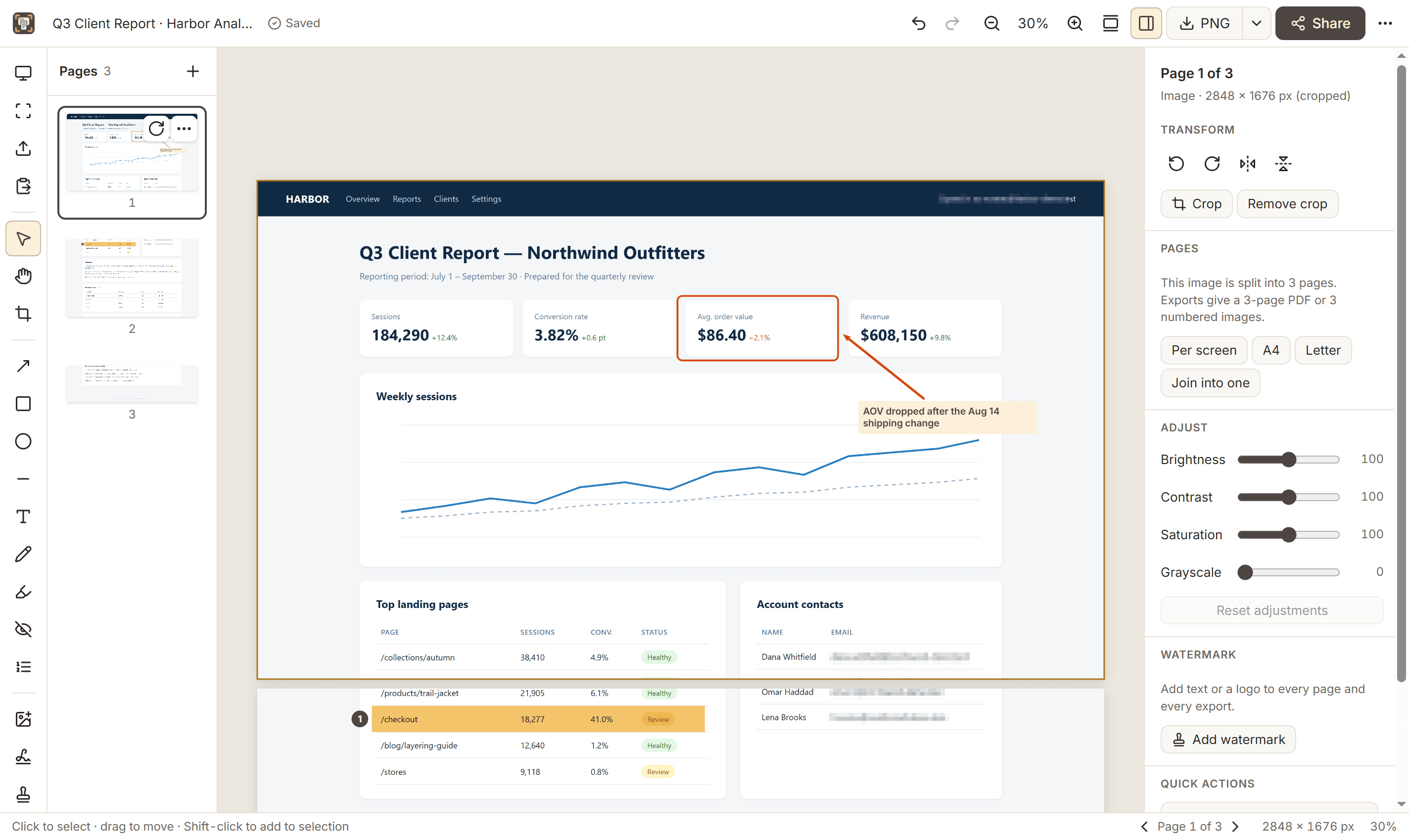
The capture opens in Capurize Studio. Add arrows and notes, hide sensitive details, crop or add a watermark.
Export or share
Download PNG, JPEG, WebP or a multi-page PDF, copy to the clipboard, or hand it to email or WhatsApp.
Everything a screenshot workflow needs
Built for people who document web pages every day and need the result to be accurate, readable and safe to share.
Full page, region or element
Capture the whole scrolling page, the visible screen, a dragged region or a single element such as a table or card.
Scroll inside panels
Capture an entire chat thread, sidebar or scrolling table, not just the part that fits on screen.
Annotate clearly
Arrows, boxes, text callouts, highlights and numbered steps that stay editable until you export.
Redact for real
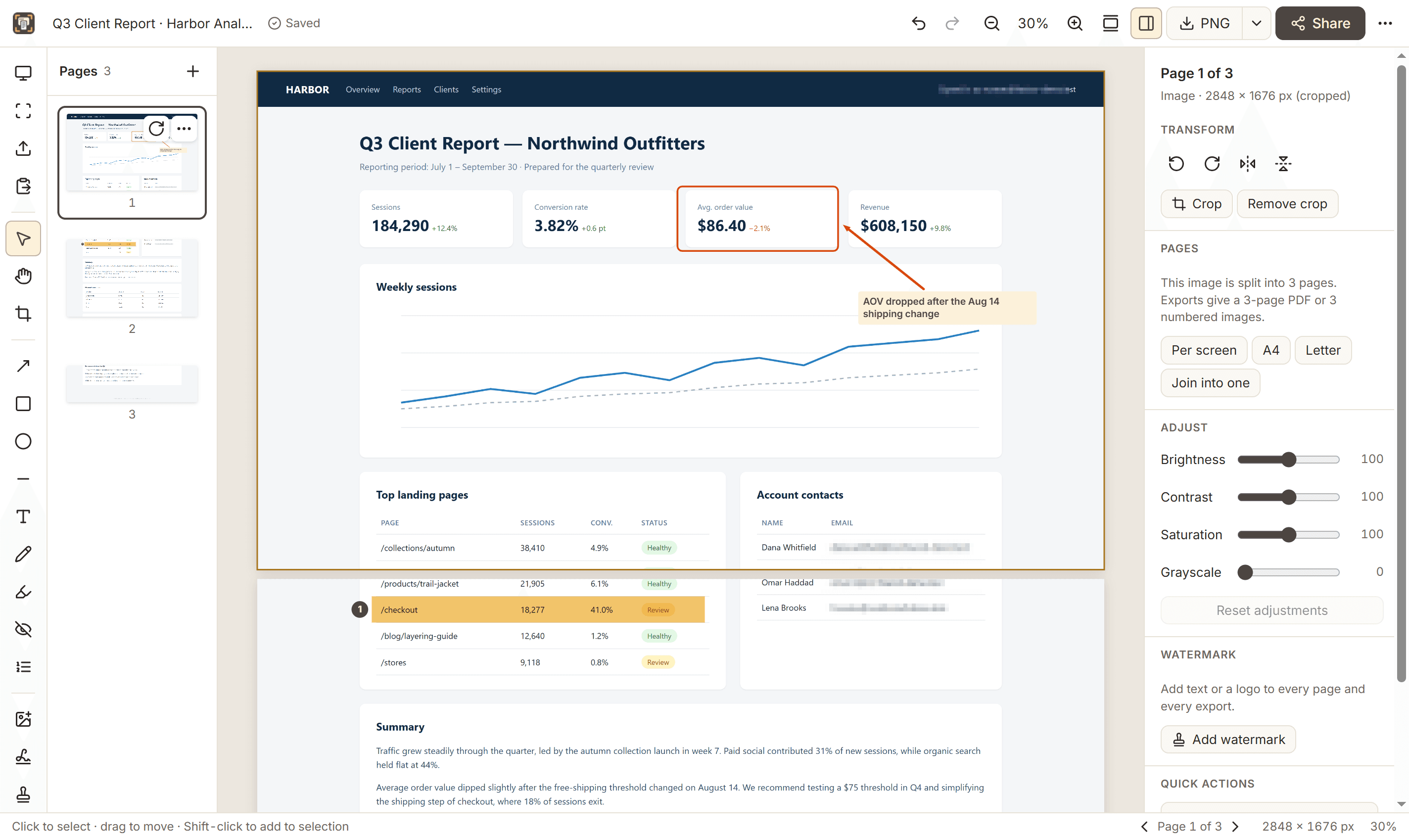
Blur, pixelate or solid redaction burned into the exported pixels, so hidden details are actually removed.
Multi-page PDF
Long captures split into clean pages automatically. Export a PDF or numbered PNG, JPEG or WebP files.
Private by design
Everything is processed and stored on your computer. No account, no uploads, no tracking.
Capture exactly the part you need
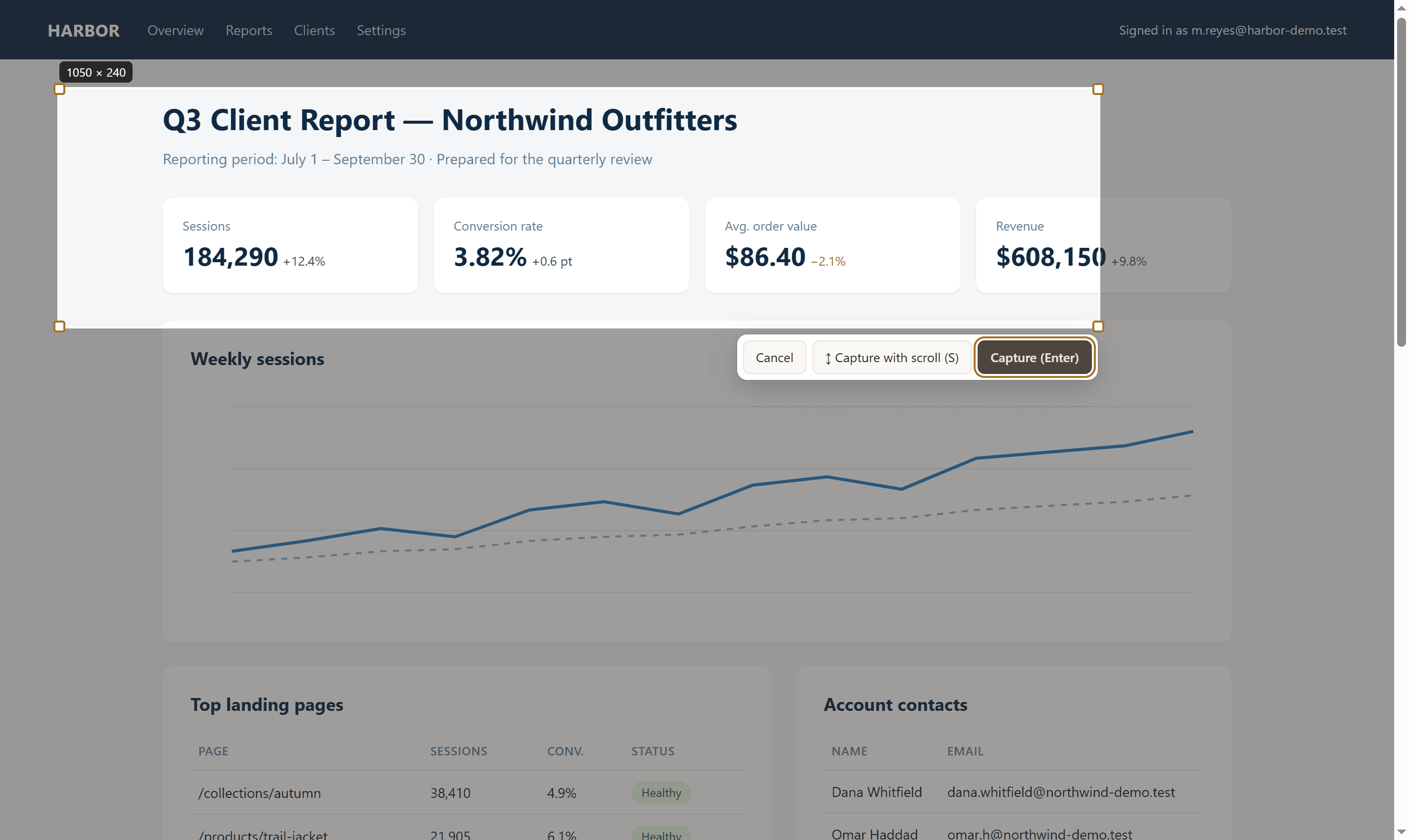
Drag over any area of the page, or hover and click to pick an element. Press S to capture with scroll: Capurize scrolls inside the area you chose and captures all of it.
- Resize or move the selection before capturing
- Capture long chat threads and scrolling tables in full
- Links and buttons on the page are not triggered while you select
Hide sensitive details before you share
Pixelate, blur or block out emails, names and account numbers. Redactions are burned into the exported pixels, so the original text is not hiding underneath a removable layer.
Made for teams that document the web
QA and testing
Capture the full page where a bug appears, number each issue and send one clear PDF.
Design reviews
Mark spacing, copy and layout issues directly on the live page instead of describing them.
Agencies and client work
Share watermarked drafts and redact client data before screenshots leave your machine.
Research and records
Keep a complete visual record of a page as it looked, with the address in the file name.
Step-by-step, from capture to finished file
Create a bug report with annotated full-page screenshots
Capture the page where a bug appears, number each problem, and send developers one clear file they can act on.
Send a client a website review with watermarked screenshots
Turn a live website into a reviewed, watermarked PDF your client can read, print and reply to point by point.
Capture and share a long chat thread safely
Capture an entire conversation that scrolls inside its own panel, redact names and numbers, and share it as a PDF.
Archive a web article or page as a PDF
Keep a faithful, paginated PDF of an article or page exactly as it appeared, with its address and date in the file name.
Popular screenshot guides
How to take a full-page screenshot in Chrome (3 ways)
How to save a web page as a multi-page PDF
How to redact sensitive information in screenshots safely
Full-page screenshot not working? How to fix it
How to screenshot an entire chat or scrolling panel
How to capture a web page at mobile or tablet width
Frequently asked questions
Is Capurize free?
Yes. During launch every feature is free. When a Pro plan is introduced, capturing pages, downloading PNG images and copying to the clipboard will stay free for everyone.
Are my screenshots uploaded anywhere?
No. Captures are processed and stored inside your browser on your own computer. Capurize has no servers that receive your screenshots, no analytics and no tracking.
How does full-page capture work?
Capurize scrolls the page one screen at a time, takes a screenshot of each part and stitches them together into one image. Sticky headers are hidden after the first screen so they are not repeated.
Can I export a long page as a PDF?
Yes. Long captures are split into pages automatically, one per screen by default or A4/Letter if you prefer, with cuts placed between lines of text. Export them as a multi-page PDF or as numbered images.
Is the blur tool safe for hiding sensitive information?
Blur, pixelate and solid redactions are burned into the exported image, so the hidden content is removed from the file rather than covered by a layer. Solid redaction is the strongest option.
Which pages can’t be captured?
Chrome does not allow extensions to capture its own pages (such as chrome:// settings pages) or the Chrome Web Store. Everything else, including pages behind a login, can be captured.
More answers in the help center.
Capture your first full page in seconds
Free during launch. No account, no uploads.