Updated October 28, 2026 · 5 min read
A normal screenshot only shows what fits on your screen. To keep a record of a whole page, such as a long article, a report or a landing page, you need a capture that includes everything below the fold. Chrome gives you three practical options.
1. Chrome DevTools (built in, no install)
Chrome has a full-page screenshot command hidden inside its developer tools. It is free and needs nothing extra, but it takes a few steps each time and offers no editing.
- Open the page and press Ctrl+Shift+I (Cmd+Option+I on Mac) to open DevTools.
- Press Ctrl+Shift+P (Cmd+Shift+P on Mac) to open the command menu.
- Type “screenshot” and choose “Capture full size screenshot”.
- Chrome saves a PNG of the whole page to your Downloads folder.
Pages that scroll inside a panel, such as many web apps and chat tools, often come out cropped, because DevTools captures the page body rather than the inner scrolling area.
2. A screenshot extension (fastest for regular use)
An extension like Capurize adds a toolbar button that scrolls the page, captures each screen and stitches them into one image. With Capurize you click the icon and choose Full page, or press Alt+Shift+P.
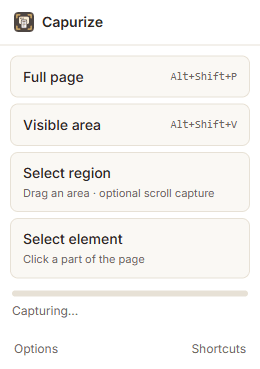
- Sticky headers are kept in the first screen only, so they don’t repeat down the image.
- Long captures are split into clean pages for PDF export, cutting between lines of text.
- The result opens in an editor where you can annotate, redact and crop before exporting.
3. Print to PDF (for text, not visuals)
Press Ctrl+P and choose “Save as PDF”. This keeps text selectable, but it uses the site’s print styles: layouts often change, backgrounds disappear and some elements are hidden. Use it when you need the words, not an exact picture of the page.
Which should you use?
- Occasional, no editing needed: DevTools.
- Regular captures, annotation, redaction or PDF export: an extension.
- A text document you can search and copy from: Print to PDF.
Tip: If parts of the page are blank in your capture, the site probably loads images as you scroll. Scroll to the bottom once before capturing, or in Capurize Options increase “Wait after each scroll”.