Updated October 28, 2026 · 4 min read
Chrome’s Print to PDF changes how many pages look. A full-page screenshot looks right but is one very tall image that is awkward to read and print. A paginated PDF made from a screenshot gives you both: the page exactly as it appeared, split into readable pages.
Steps
- Capture the page with Capurize (Full page, or Alt+Shift+P).
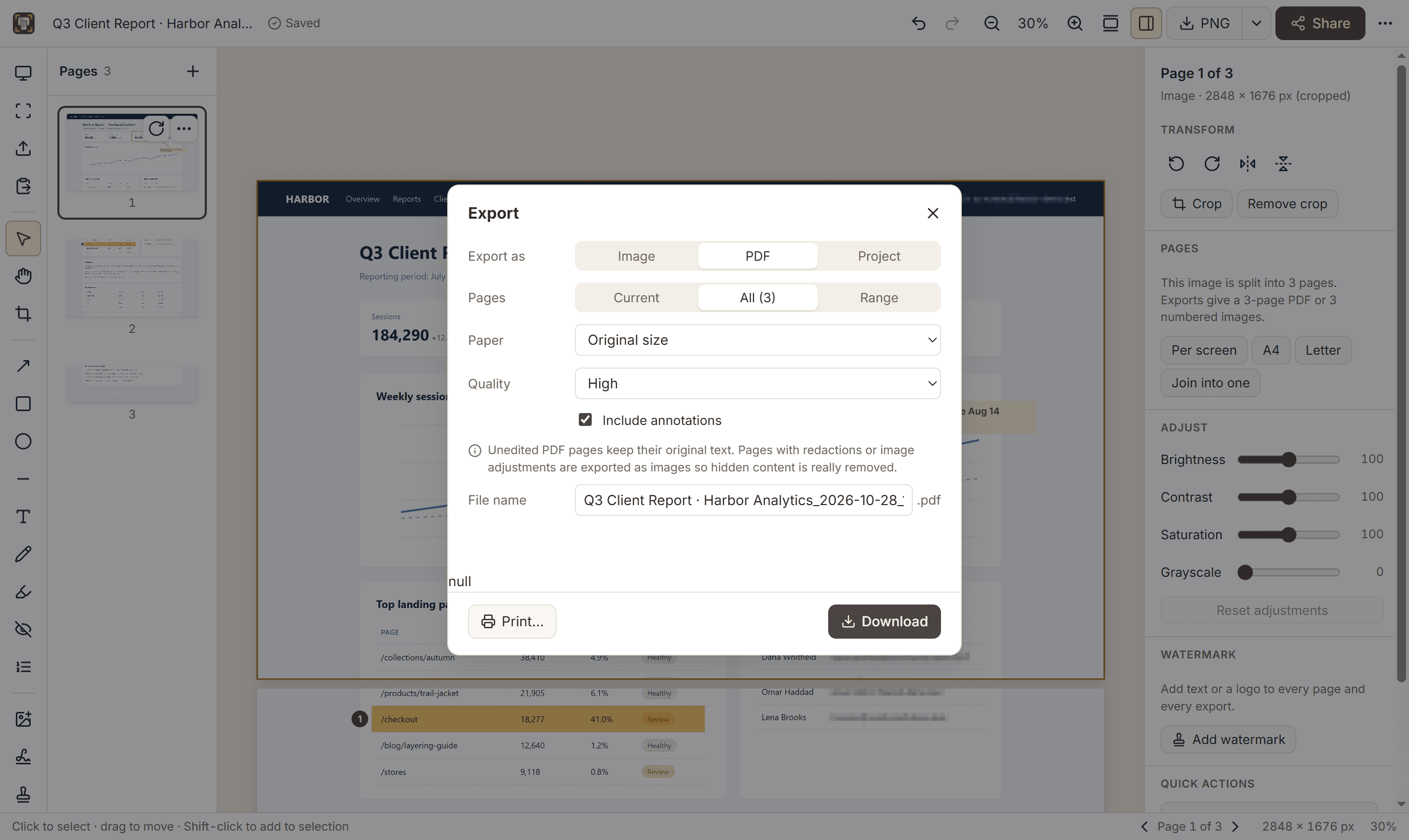
- The Studio opens with the capture already split into pages, one screen tall by default.
- To change the split, select nothing and use the Pages section on the right: Per screen, A4, Letter or Join into one.
- Click the arrow next to the download button, choose PDF and click Download.
Why the page breaks look clean
When Capurize splits a capture, it looks a little above each cut for a row without text and cuts there, so a line of text is never sliced in half across two pages.
PDF options worth knowing
- Paper: “Original size” keeps each page exactly as captured; A4, Letter, Legal and A3 fit the capture to standard paper.
- Quality: High keeps text crisp; Smallest file reduces size for email.
- Annotations and watermarks are included unless you switch them off.
Tip: If you prefer separate images, choose PNG instead: every page downloads as a numbered file.