Updated October 28, 2026 · 4 min read
Many web apps don’t scroll the page itself. The conversation, inbox or table scrolls inside its own panel while the rest of the screen stays still. Standard full-page tools capture the outer page and miss everything hidden inside that panel.
Capture the panel with scroll
- Click the Capurize icon and choose Select region.
- Drag a box over the scrolling panel, such as the chat thread.
- Press S, or click “Capture with scroll”.
- Capurize scrolls inside that panel from top to bottom and stitches every part into one image.
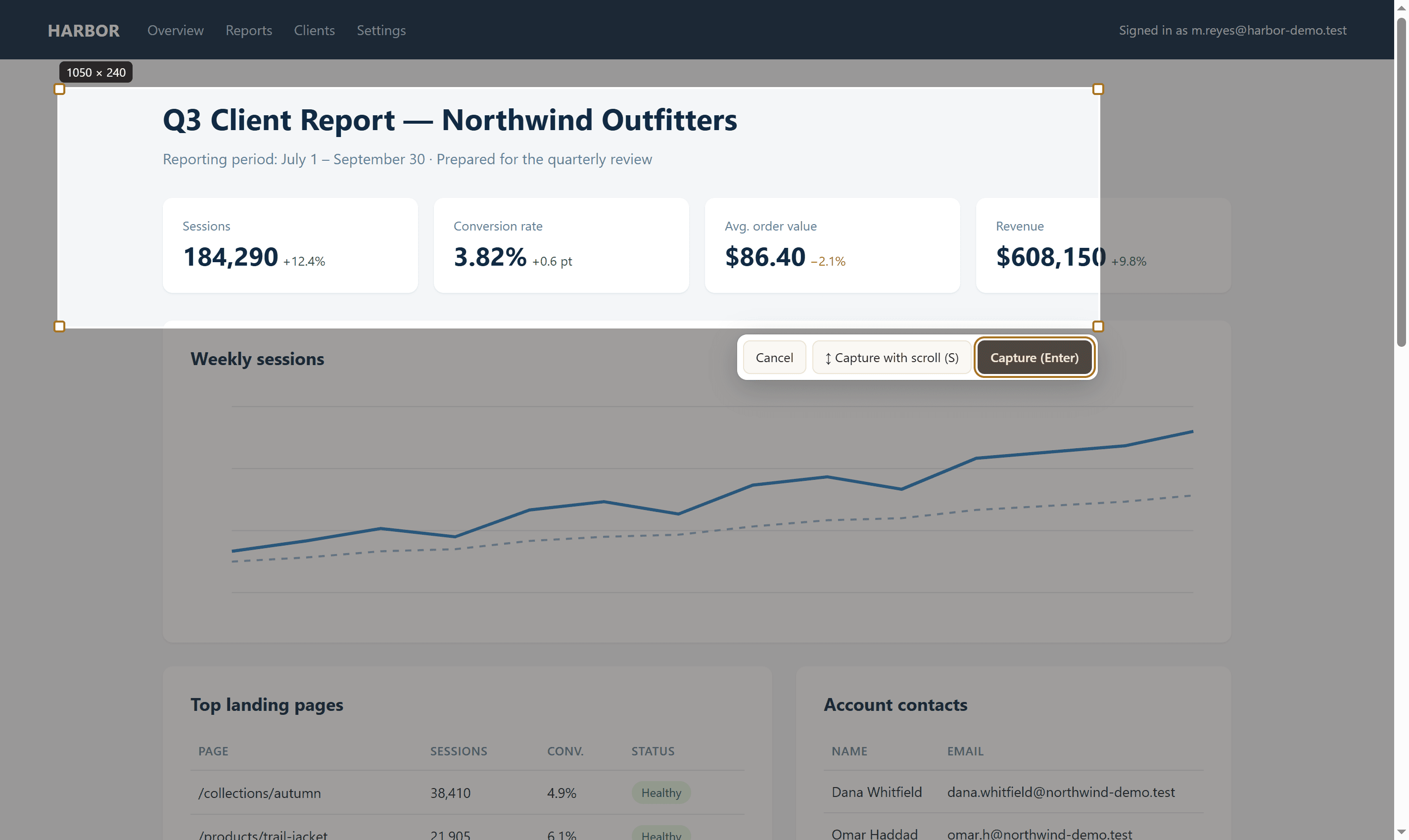
You can also use Select element: click any message inside the thread, then press S. Capurize finds the scrolling container around it and captures all of it.
Tips for chat apps
- Many chat apps only load older messages as you scroll up. Scroll to the start of the conversation first so everything is loaded, then capture.
- Long threads are split into pages automatically, so you can export them as a multi-page PDF.
- Chats often contain names, phone numbers and emails. Redact them before sharing (see the redaction guide).
Tip: After capturing, Capurize puts the panel’s scroll position back where it was.