Updated October 28, 2026 · 3 min read
Cropping a full-page screenshot by hand is slow and rarely exact. Element capture selects the part of the page you want using the page’s own structure, so the edges are precise.
Steps
- Click the Capurize icon and choose Select element.
- Move the mouse over the page. The element under the pointer is highlighted with its size shown.
- Press ↑ to select the surrounding element, or ↓ to go back to a smaller one.
- Click to choose it, then press Enter (or click Capture).
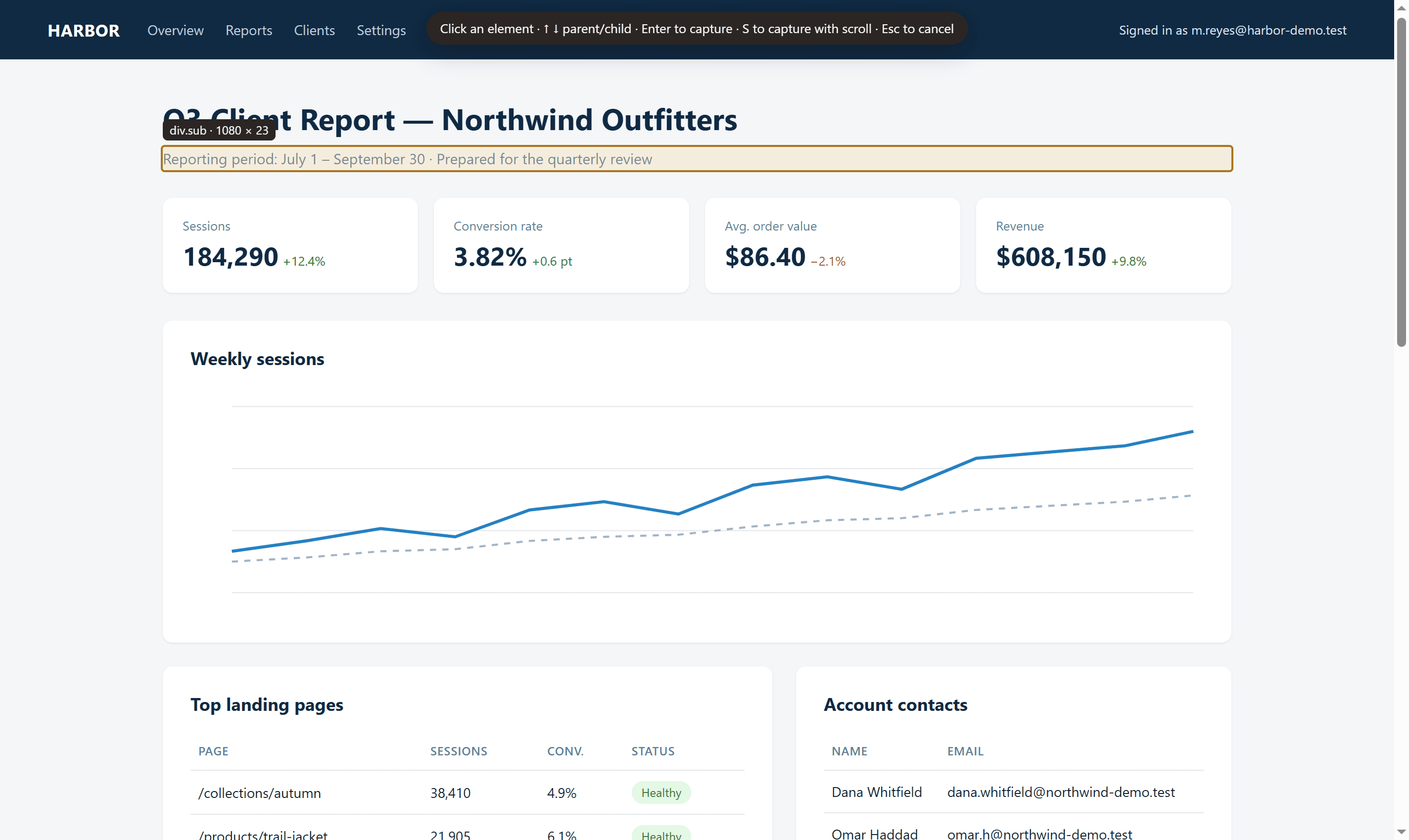
If the element is taller than the screen, Capurize scrolls the page and captures all of it. If it scrolls internally, press S to capture its full scrolling content.
Tip: While you are selecting, clicks on the page are blocked, so links and buttons won’t fire by accident.